Bulk Network Transfer
Bulk Network Transfer lets you move multiple client registrations from your company to another company in the same Zooza network — in a single action. It is the franchise equivalent of a booking transfer, applied at scale.
This feature is only available to companies that are part of a Zooza network. If you do not see the transfer option, your account may not be connected to a network.
When to use it
- A client has been attending your branch but wants to continue at a sibling branch.
- You are closing or merging a location and need to migrate all active registrations to another branch.
- A cohort of clients is being reassigned to a different franchise company for an upcoming term.
How it works
The transfer creates new registrations at the target company based on the registrations you select. Depending on the cancel mode you choose, the original registrations at the source company are either cancelled immediately or cancelled only after the target company accepts the transfer.
Before committing, the system shows a preview (dry run) of how many registrations will be transferred and how many will be skipped — with a reason for each skipped registration.
Step-by-step
1. Open the Bookings list
Go to Bookings and use the filters to narrow down the registrations you want to transfer — for example, filter by programme, class, or status.
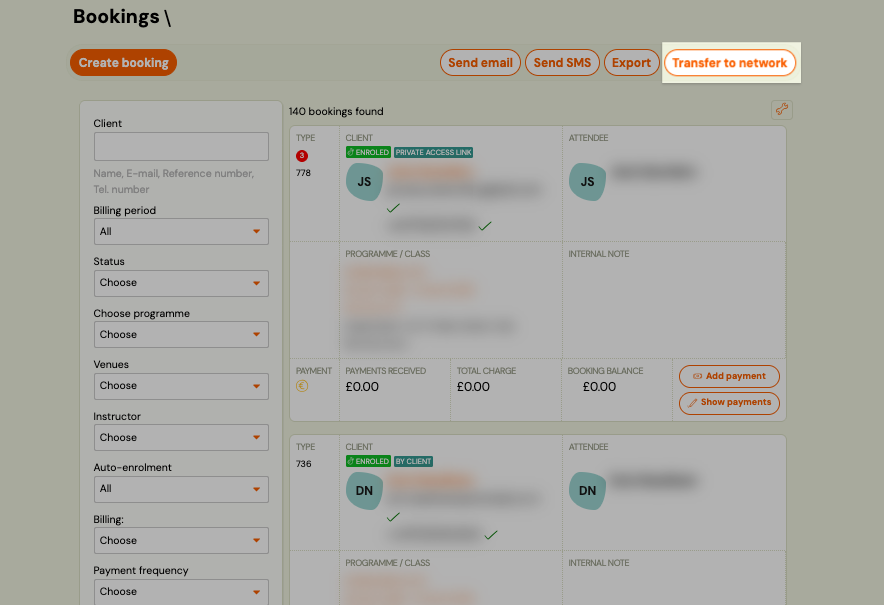
2. Select the registrations
Check the registrations you want to transfer. Use Select all to include all results from the current filter.
3. Choose Bulk action → Network transfer
Click Bulk action and select Network transfer.
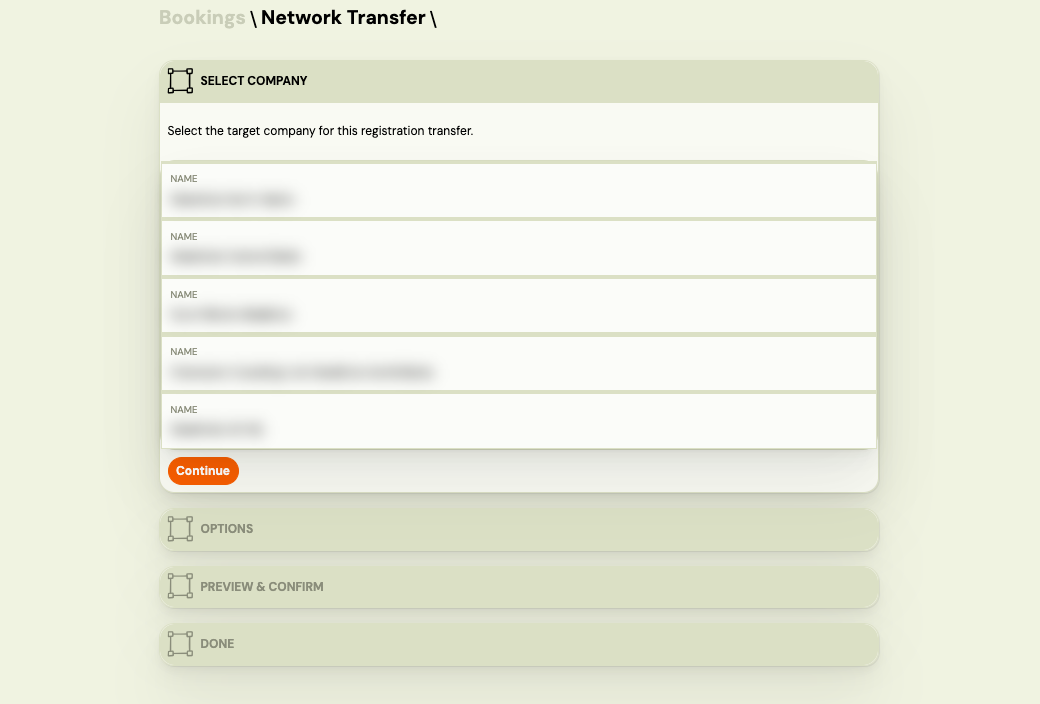
4. Set the transfer parameters
In the transfer dialog:
- Target company — select the sibling company to transfer registrations to.
- Cancel mode — choose what happens to the source registrations:
- Cancel immediately — the original registrations are cancelled as soon as you confirm.
- Cancel on accept — the original registrations remain active until the target company accepts the transfer.
- Note (optional) — internal note visible to both companies.
5. Preview the results
Click Preview (dry run). The system shows:
- Will be transferred — number of eligible registrations.
- Will be skipped — registrations that cannot be transferred, with a reason for each (e.g. already has a pending transfer, invalid status).
Review the skipped list. If needed, go back and adjust your selection.
6. Confirm
Click Transfer to execute. The system processes each registration individually. Ineligible registrations are automatically skipped — they do not block the rest from transferring.
After the transfer
- Transferred registrations appear in the target company's Bookings list.
- Skipped registrations remain at the source company unchanged.
- If you used Cancel on accept, the source registrations stay active until the target company confirms.
Why are some registrations skipped?
| Reason | Meaning |
|---|---|
already_has_pending_transfer | This registration already has an unresolved network transfer in progress. |
invalid_status | The registration status does not allow transfer (e.g. cancelled, deleted). |
| Other | The registration failed internal validation. Check the registration detail. |
Related
- Network Application — franchise reporting overview
- Transfer and copy bookings — transferring a booking within the same company