Group rooms under one place in the booking widget
By default, the registration widget lists each room at a location as a separate option in the place selection step. If your venue has multiple rooms but you do not want clients to choose a specific room — only the location — you can enable Merge rooms.
When enabled, the widget shows one entry per location. The room is still assigned automatically based on the selected schedule.
Enable merge rooms
- Go to Settings → Widgets.
- Open the registration widget you want to configure.
- Find the Merge rooms checkbox and enable it.
- Click Save.
The widget immediately shows grouped places for new visitors.
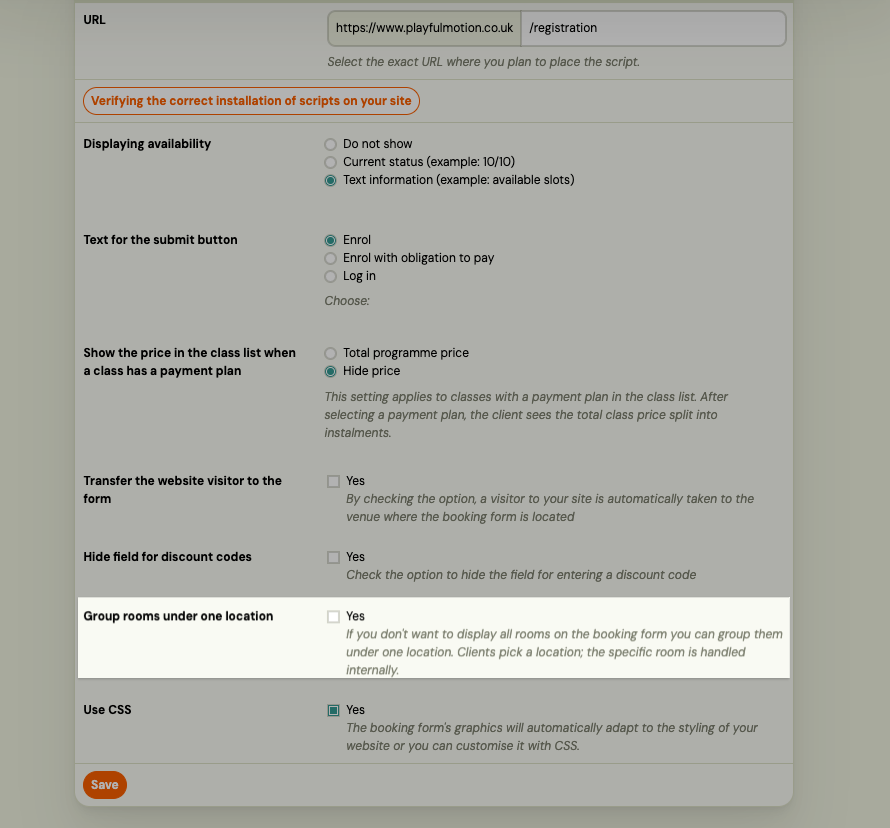
New widgets have merge rooms enabled by default. Existing widgets keep their current setting until you change it.
When to use this
- You have a venue with multiple rooms (e.g. Studio A, Studio B) but clients should just select the venue.
- You want to reduce the number of choices in the booking flow.
- The schedule already determines which room a client is assigned to — the choice is an internal detail.
When to leave it off
- You want clients to actively choose a specific room (e.g. small group vs. large group).
- Your rooms have meaningfully different capacities or purposes that clients need to know about.
Reset to defaults
If you reset a registration widget to its default settings, Merge rooms is enabled as part of the reset. Review your widget settings after resetting if you prefer the per-room view.