Programme Settings
The Programme Settings page is a dashboard of configuration tiles. Each tile controls a different aspect of the programme. Open it by clicking Edit Settings on a programme detail page.
Navigation: Go to Programmes → select a programme → Edit Settings.
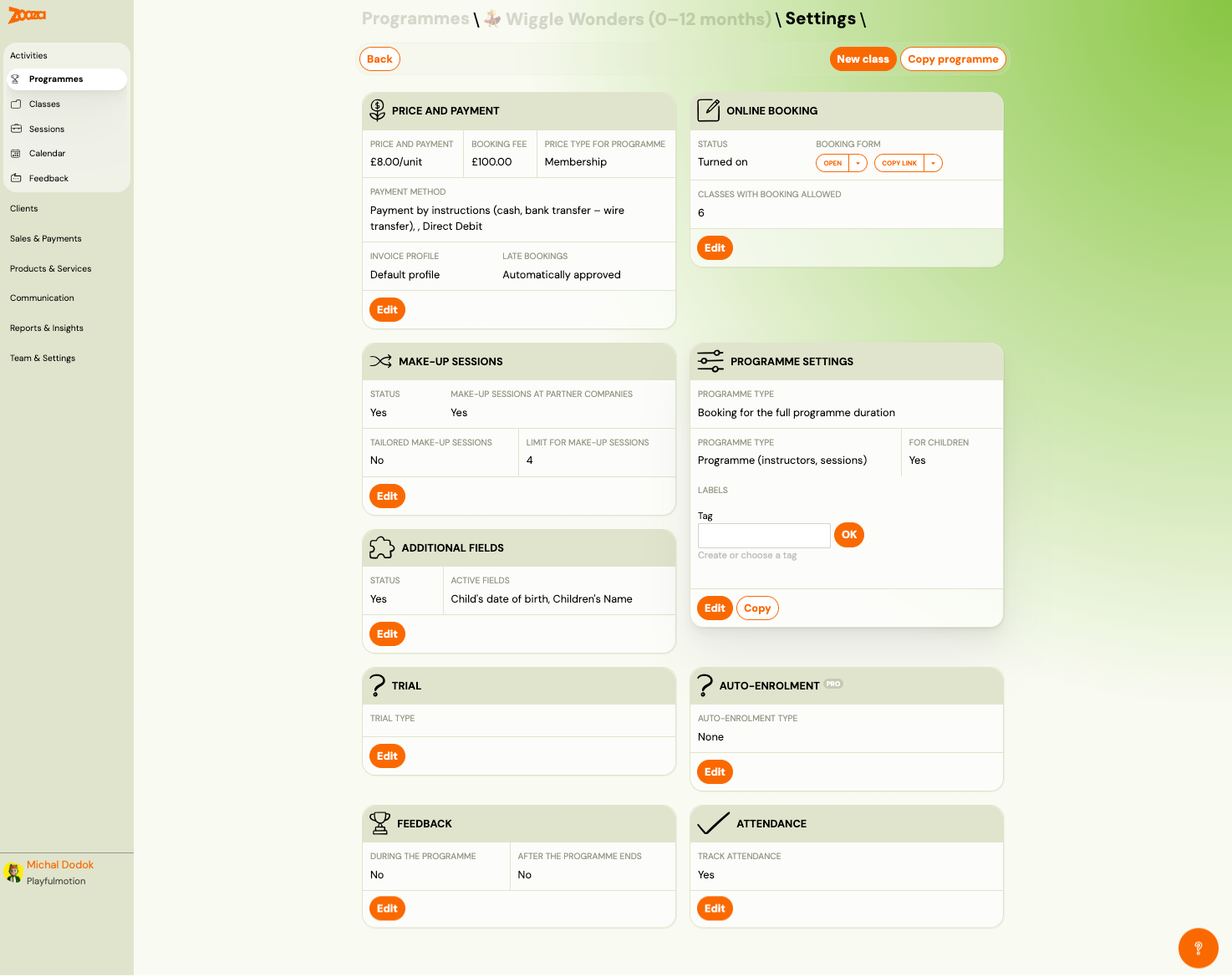
Settings Overview
The dashboard shows 10 tiles at a glance. Each tile displays a summary of current values and an Edit button to open the full editor.
| Tile | Summary shown |
|---|---|
| Price and Payment | Unit price, booking fee, price type, payment method, invoice profile, late bookings policy. |
| Online Booking | Status (on/off), booking form link, number of classes with booking allowed. |
| Make-up Sessions | Status, partner companies, tailored make-ups, session limit. |
| Programme Settings | Programme type, timetable type, for children flag, labels. |
| Additional Fields | Status, list of active fields (e.g., "Child's date of birth, Children's Name"). |
| Trial | Trial type (none, free, paid, etc.). |
| Auto-Enrolment | Auto-enrolment type (none, suggest timetables, duplicate). |
| Feedback | During programme (yes/no), after programme ends (yes/no). |
| Attendance | Track attendance (yes/no). |
Top-right buttons: New class, Copy programme.
Price and Payment
Controls how much clients pay and how payments are collected. For a full explanation of each pricing model, see Price and payment setup.
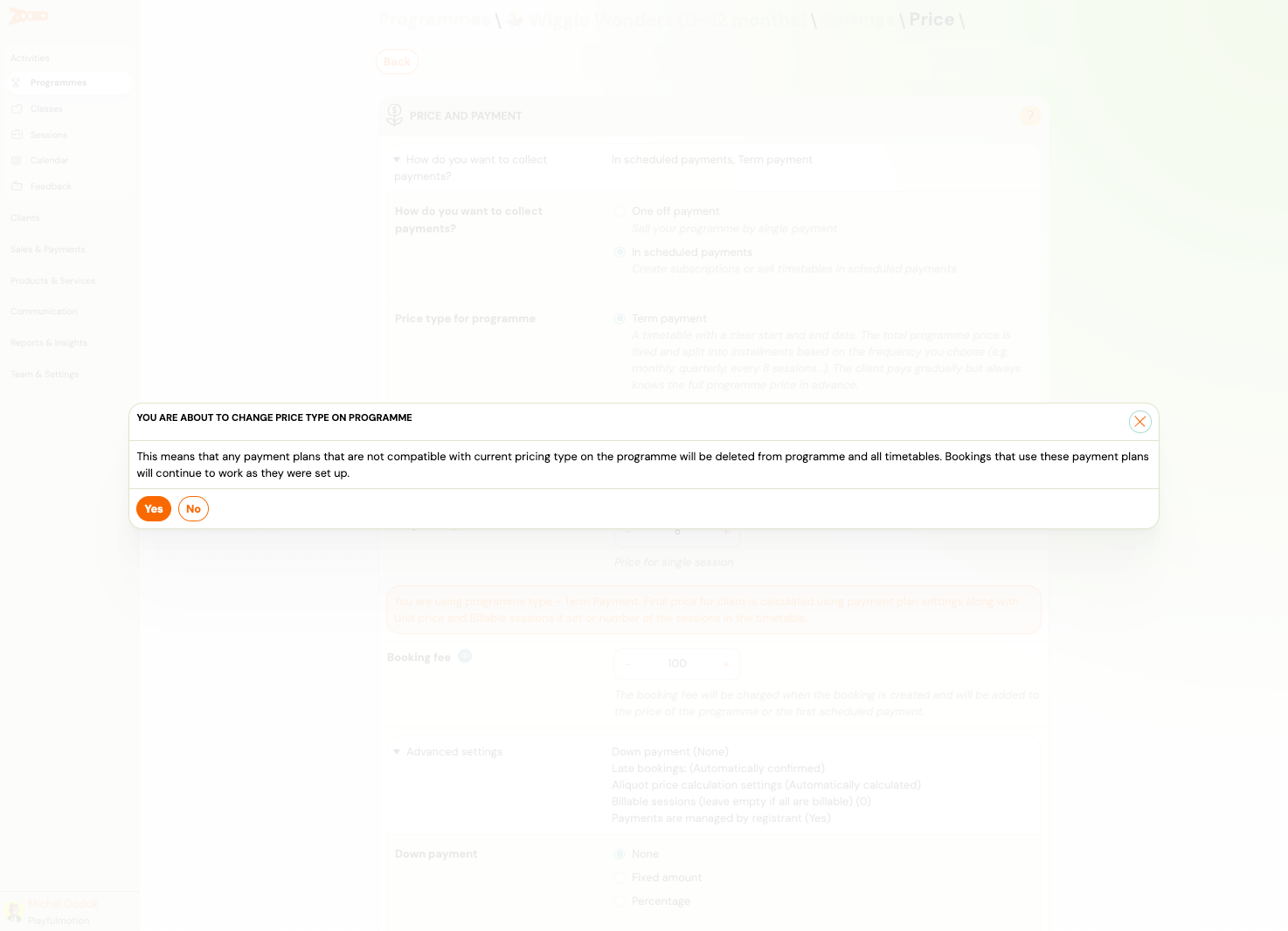
| Field | Description |
|---|---|
How do you want to collect payments? | One off payment — single charge. In scheduled payments — recurring (term, membership, subscription). |
Price type for programme | Term payment — total price split into instalments by frequency. Membership — recurring charge at a fixed interval. |
Booking fee | One-time fee charged at booking. |
Advanced settings | Expandable section with: Down payment, Late bookings policy, Aliquot price calculation, Include Initial Full Scheduled Payment, Billable sessions, Payment managed by registrant. |
Down payment | None, Fixed amount, or Percentage of total price. |
When changing the price type, a confirmation dialog warns that incompatible payment plans will be deleted from the programme and all timetables.
Online Booking
Controls how the programme appears on your public booking forms.
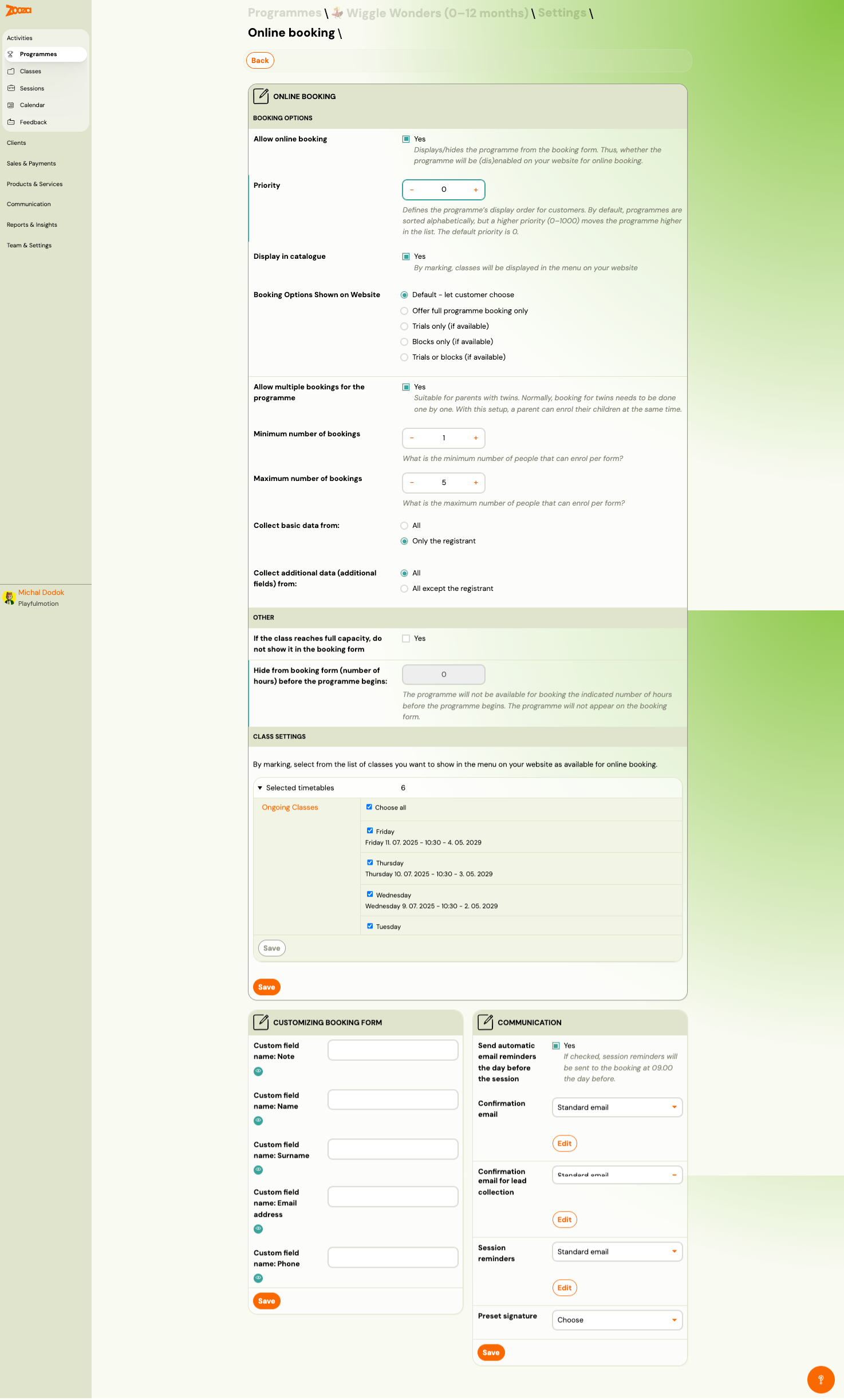
Booking Options
| Field | Description |
|---|---|
Allow online booking | Master toggle — shows/hides the programme on your website. |
Priority | Display order (0–1000). Higher priority = higher in the list. Default: 0. |
Display in catalogue | Show classes in the website menu. |
Booking Options Shown on Website | Default — client chooses. Full programme only, Trials only, Blocks only, Trials or blocks. |
Allow multiple bookings for the programme | Enables parents to enrol multiple children at once (e.g., twins). |
Minimum / Maximum number of bookings | Min and max children per form submission. |
Collect basic data from | All enrolled or Only the registrant. |
Collect additional data from | All enrolled or All except the registrant. |
Other
| Field | Description |
|---|---|
If the class reaches full capacity, do not show it in the booking form | Hides full classes entirely (instead of showing "class full"). |
Hide from booking form N hours before the programme begins | Auto-hides the programme before it starts. |
Class Settings
Select which classes (timetables) are available for online booking. Toggle individual classes or use Choose all.
Customizing Booking Form
| Field | Description |
|---|---|
Custom field name: Note | Custom label for the note field. |
Custom field name: Name | Custom label for the name field. |
Custom field name: Surname | Custom label for the surname field. |
Custom field name: Email address | Custom label for the email field. |
Custom field name: Phone | Custom label for the phone field. |
Communication
| Field | Description |
|---|---|
Send automatic email reminders the day before the session | Sends reminders at 09:00 the day before. |
Confirmation email | Template used after booking. Click Edit to customize. |
Confirmation email for lead collection | Separate template for lead-collection timetables. |
Session reminders | Template for session reminder emails. |
Preset signature | Select a pre-configured email signature. |
Make-up Sessions
Controls whether clients can book make-up sessions for missed classes.
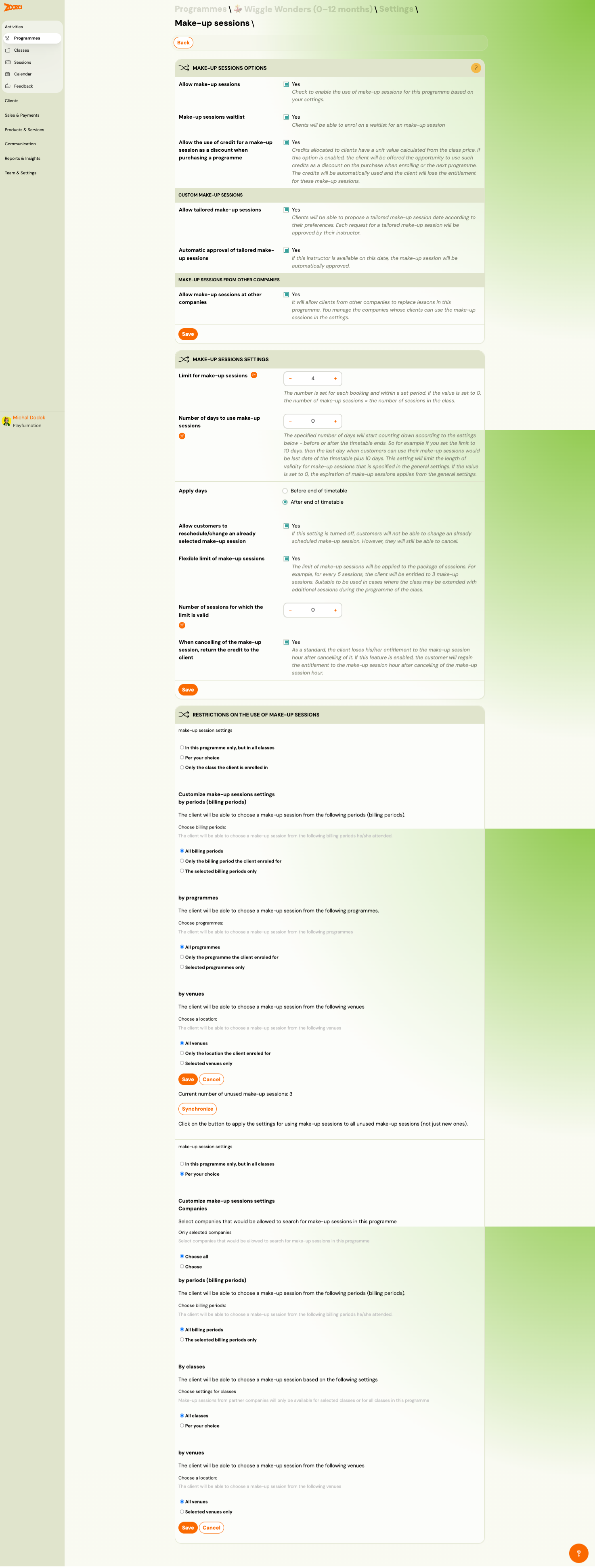
Make-up Sessions Options
| Field | Description |
|---|---|
Allow make-up sessions | Master toggle. |
Make-up sessions method | How clients access make-ups (notified, self-service, etc.). |
Allow the use of credits for a make-up session | Enables credit-based make-up redemption. |
Allow tailored make-up sessions | Lets clients request a tailored (custom) make-up session. |
Automatic approval of tailored make-ups | Auto-approves or requires admin review. |
Allow make-up sessions at other companies | Partner company make-ups (cross-company). |
Make-up Sessions Settings
| Field | Description |
|---|---|
Limit for make-up sessions | Maximum number of make-ups per client per period (e.g., 4). |
Number of days to use make-up | Deadline for using a make-up after the missed session. |
Apply filter | "Before end of timetable" or "After end of timetable". |
Allow customers to purchase/exchange an already used make-up session | Allows rebooking used make-ups. |
Flexible limit of make-up sessions | Makes the limit soft — e.g., if limit is 3, client gets entitled to 3 make-ups every N sessions. |
When cancelling of the make-up by the client | Controls what happens when a client cancels their make-up. |
Restrictions on the Use of Make-up Sessions
Customize restrictions by:
- Billing period — limit make-ups to specific billing periods.
- Programme — limit to specific programmes.
- Venue — limit to specific locations.
- Class — limit to specific classes.
Programme Settings (Basic Info)
Core programme identity and type.
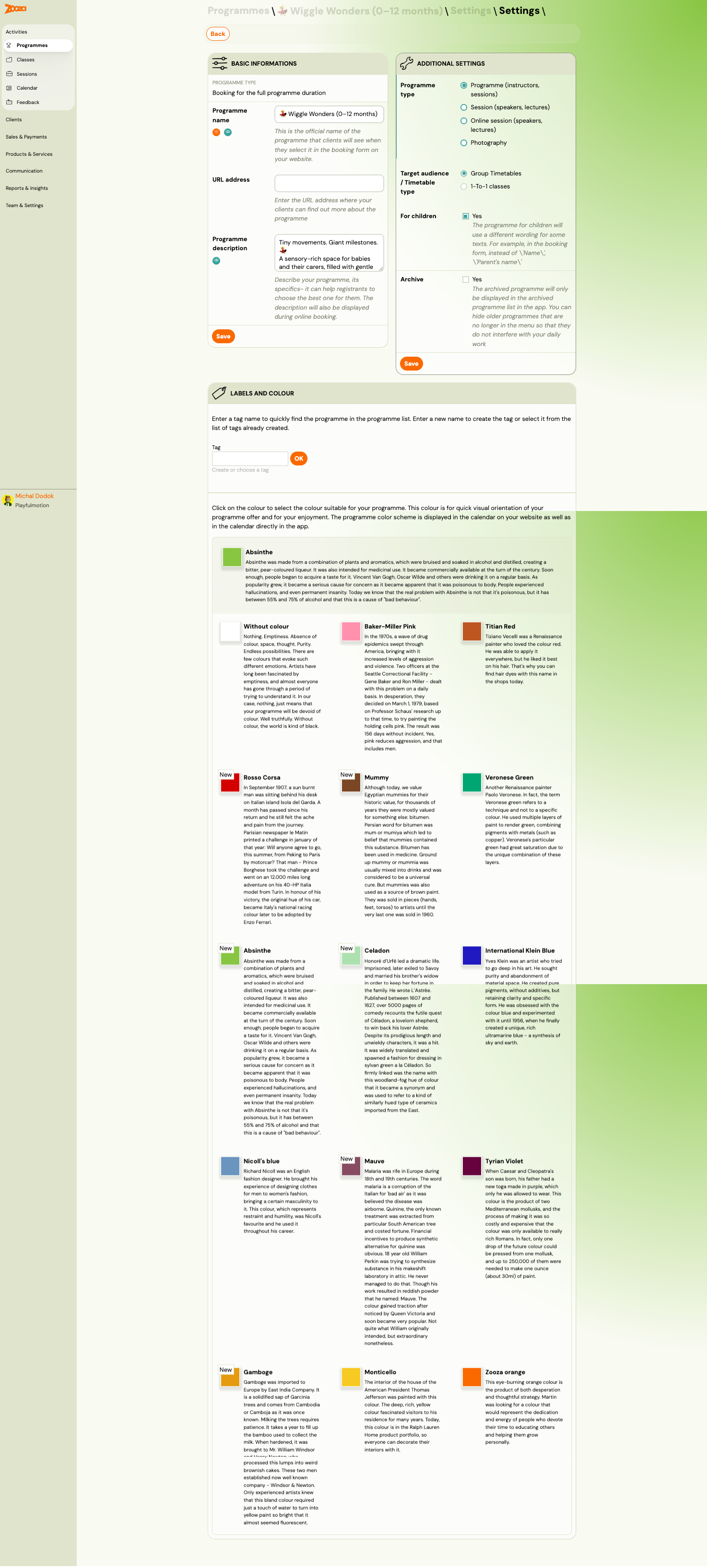
Basic Information
| Field | Description |
|---|---|
Programme name | Public name shown on booking forms and your website. |
URL address | Custom URL slug for the programme page. |
Programme description | Rich text description shown during online booking. |
Archive | Archive the programme (hides it from active lists). |
Additional Settings
| Field | Description |
|---|---|
Programme type | Programme (instructors, sessions) or other types. |
Target audience | Class Timetables or 1-To-1 classes. |
For children | Uses child-oriented wording on booking forms. |
Labels and Colour
- Labels — add tags to categorize the programme.
- Colour — select a colour for calendar display and visual identification. Choose from preset colours (each with a creative description) or use custom colours.
Additional Fields
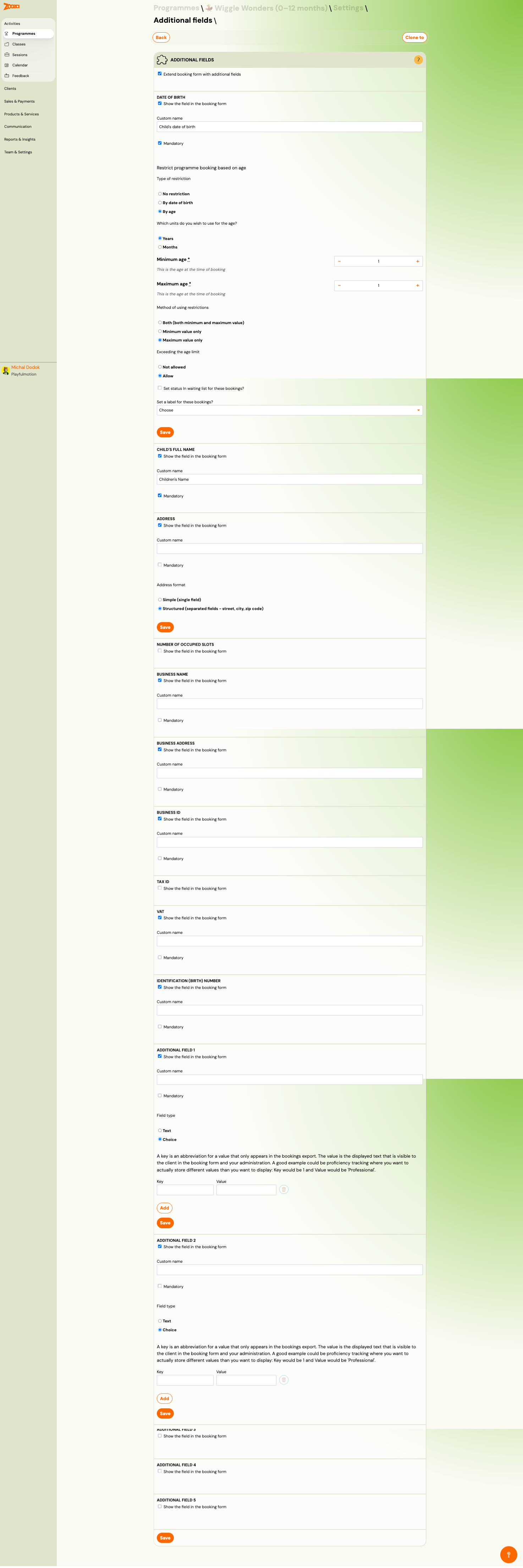
Configures extra data fields on the booking form. For a step-by-step guide, see Additional fields on the booking form.
| Field | Description |
|---|---|
Extend booking form with additional fields | Master toggle. |
Date of birth | Show on form, custom label, mandatory flag. Optionally restrict booking by age (min/max, by date of birth or by age). |
Child's full name | Show on form, custom label, mandatory flag. |
Address | Simple (single field) or Structured (street, city, zip code). |
Number of occupied slots | Relevant for sessions (e.g., birthday parties). |
Business name / Business address / Business ID / Tax ID / VAT | Business/invoice fields. |
Identification (birth) number | National ID field. |
Additional field 1–5 | Custom fields with Text or Choice type. Choice fields use key/value pairs for export. |
Trial
Configures trial session behaviour for the programme.
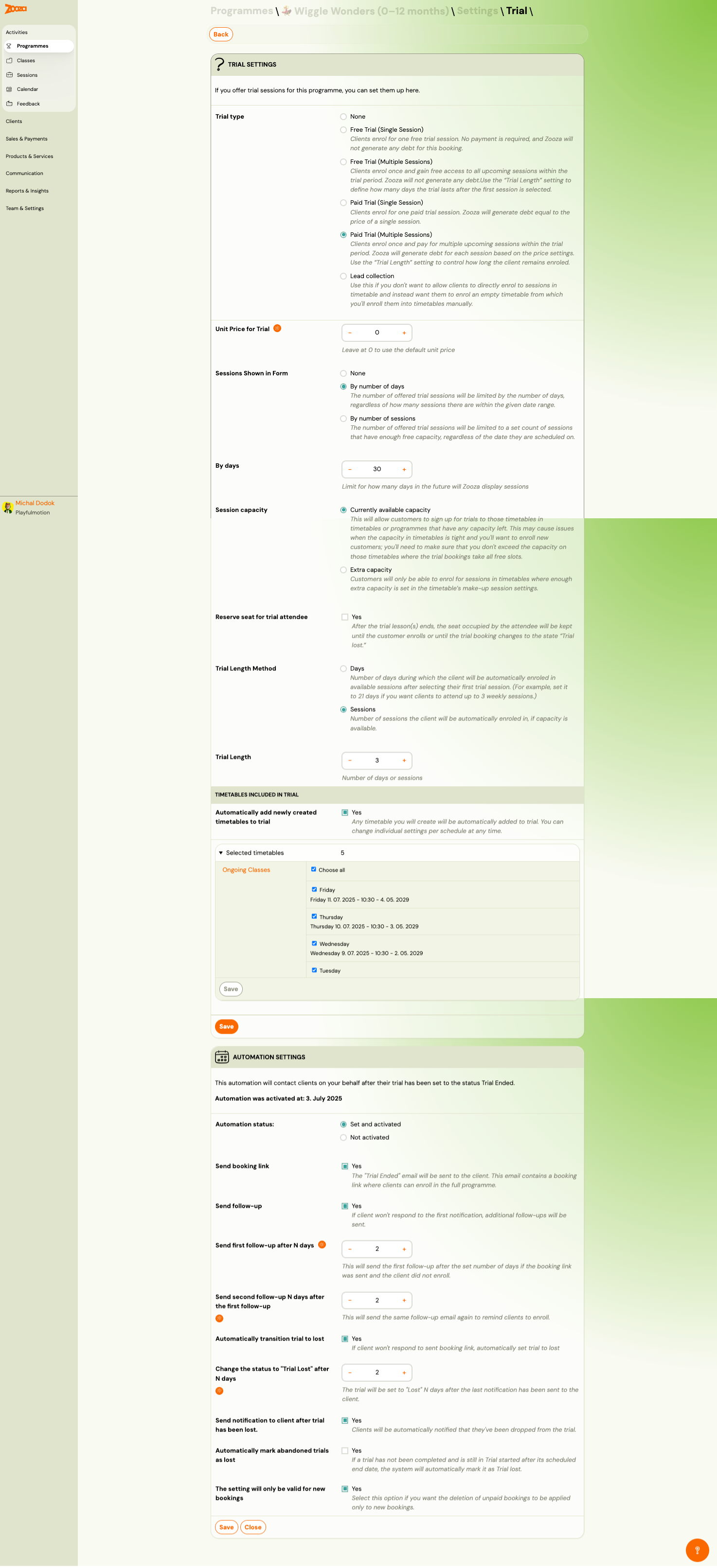
Trial Settings
| Field | Description |
|---|---|
Trial type | None, Free Trial (Single Session), Paid Trial (Single Session), Free Trial (Multiple Sessions), Lead collection — each with different billing and session behaviour. |
Unit Price for Trial | Price per trial session (if paid). |
Sessions Shown in Form | By number of days — limited by date range. By number of sessions — limited by session count. By dates — specific date range. |
Session capacity | Currently available capacity or Force capacity (override). |
Reserve seat for trial attendee | Holds a spot during the trial period. |
Trial Length Method | Days — number of days the trial remains active. Sessions — number of sessions. |
Trial Length | Number of days or sessions. |
Timetables Included in Trial
Select which timetables are available for trial bookings. Toggle Automatically add newly created timetables to trial.
Automation Settings
| Field | Description |
|---|---|
Automation status | Active/inactive toggle. |
Send booking link | Sends an enrolment link after the trial ends. |
Send follow-up | First follow-up email after N days. |
Send second follow-up | Second reminder after additional N days. |
Automatically transition trial to lost | Auto-marks abandoned trials as "Trial Lost". |
Change the status to "Trial Lost" after N days | Timeout in days. |
Send notification to client after trial lost | Notifies the client when their trial expires. |
Automatically mark abandoned trials | Marks unattended trial bookings. |
Auto-Enrolment
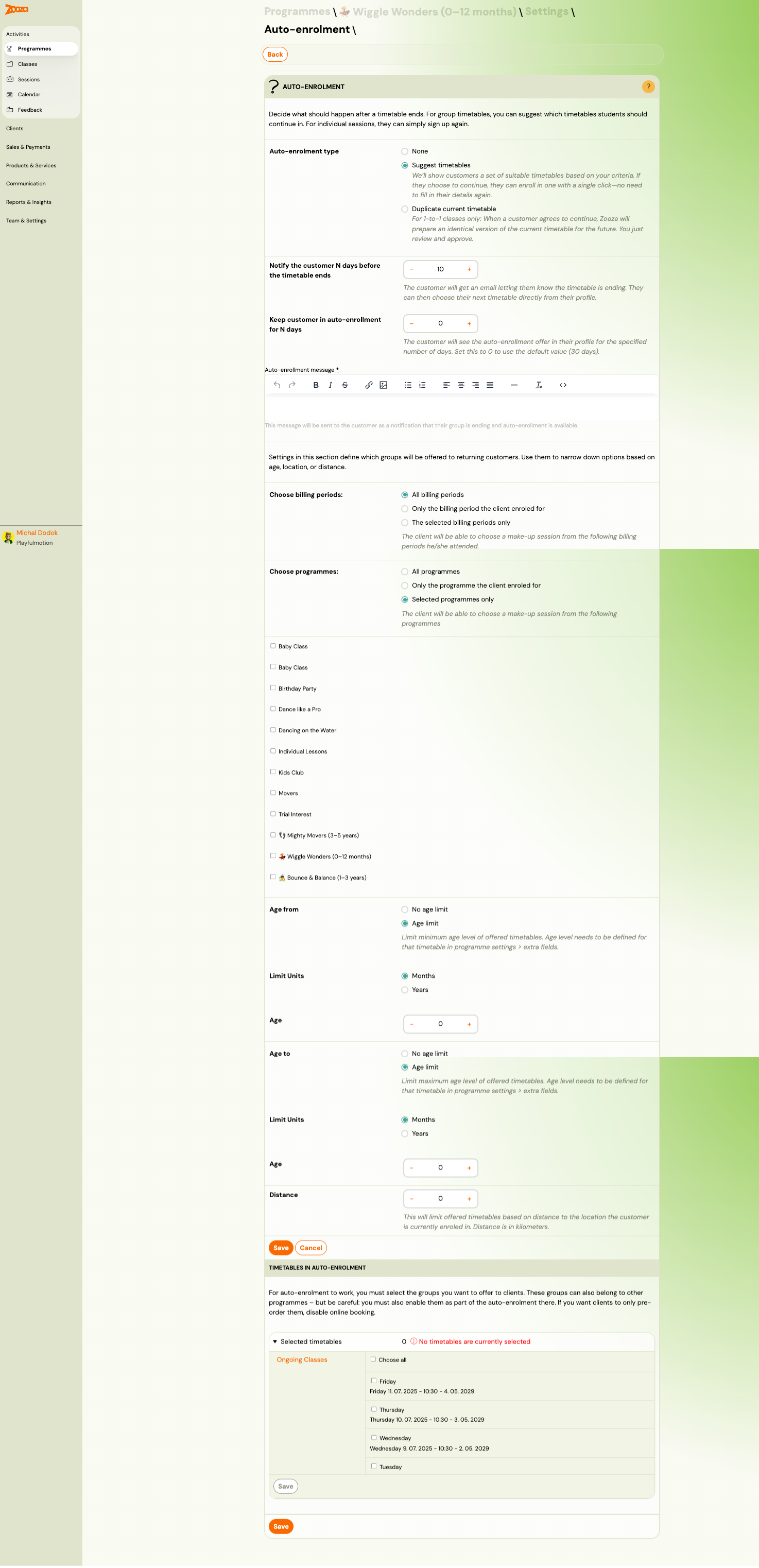
Controls what happens when a client's current class/timetable is ending.
| Field | Description |
|---|---|
Auto-enrolment type | None, Suggest timetables (client picks from filtered options), Duplicate current timetable (1-to-1 classes only). |
Notify the customer N days before the timetable ends | Days before expiry to send the notification. |
Keep customer in auto-enrollment for N days | How long the offer stays visible in the client's profile (0 = default 30 days). |
Auto-enrolment message | Rich-text message sent to the client. |
Filtering Options
| Field | Description |
|---|---|
Choose billing periods | All, only enrolled period, or selected periods. |
Choose programmes | All, only enrolled programme, or selected programmes. |
Age from / Age to | Filter offered timetables by child age. |
Distance | Limit by distance (km) from the client's current location. |
Timetables in Auto-Enrolment
Select which timetables to offer to returning clients. Must be explicitly enabled per timetable.
Feedback
Controls automatic feedback collection.
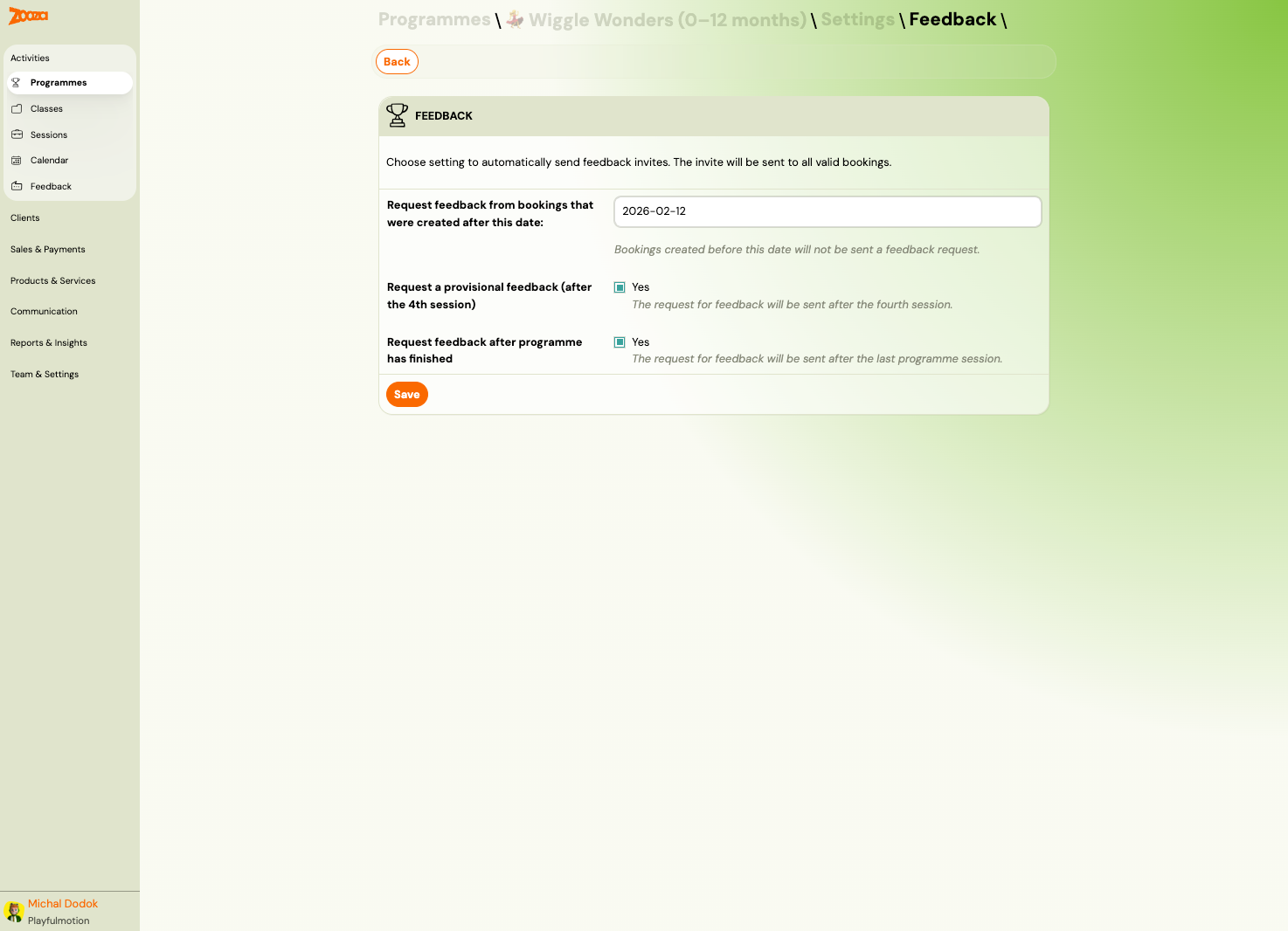
| Field | Description |
|---|---|
Request feedback from bookings that were created after this date | Only bookings after this date receive feedback invites. |
Request a provisional feedback (after the 4th session) | Sends a mid-programme feedback request. |
Request feedback after programme has finished | Sends feedback after the last session. |
Attendance
Controls attendance tracking and session rescheduling.
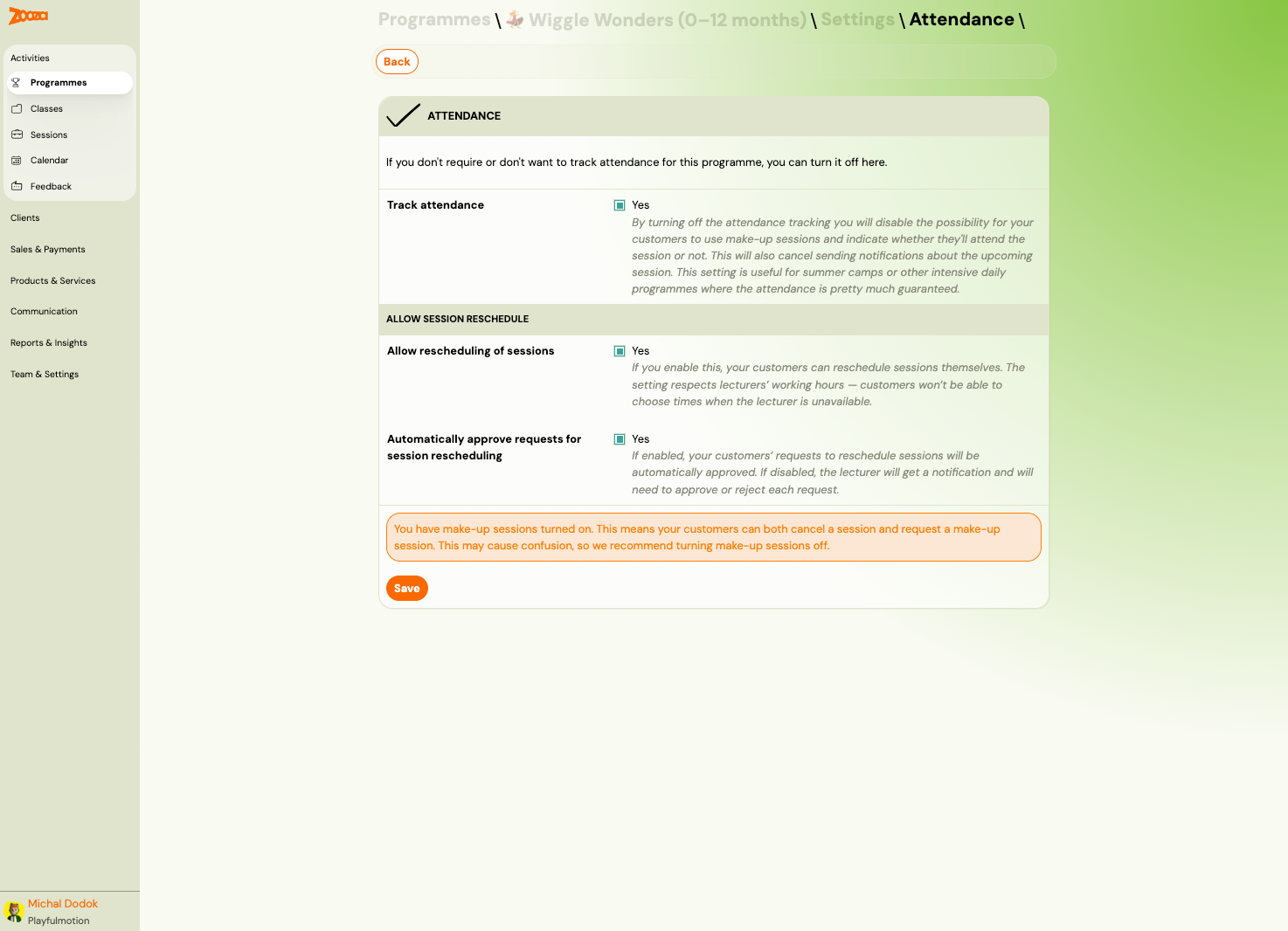
| Field | Description |
|---|---|
Track attendance | Disabling removes make-up session availability and cancels session notifications. Useful for summer camps or daily programmes. |
Allow Session Reschedule
| Field | Description |
|---|---|
Allow rescheduling of sessions | Lets clients reschedule their own sessions (respects instructor availability). |
Automatically approve requests for session rescheduling | Auto-approves reschedule requests. If disabled, the instructor must approve each request. |
If both make-up sessions and rescheduling are enabled, a warning appears: clients can both cancel and request a make-up, which may cause confusion.
Related
- Programmes List — the main programmes view.
- Programme Automations — booking, payment, and enrolment automations.
- Payment Options Guide — how to configure payment methods.
- Trial Sessions Setup — step-by-step trial configuration.
- Online Registration Setup — publishing your booking forms.